

Migration guide
In a recent update, we have released a new version of Paybyrd’s payment gateway solution. Previously known as the Hosted Form, Paybyrd Checkout is now available for use. This update introduces new display functionality, a more streamlined payment flow, and several user experience improvements.
We have created this guide to help you migrate to the new version of Paybyrd Checkout.
To ensure that transition to the new version is seamless, Paybyrd continues to support implementations of the previous version for an indefinite period.
List of changes
This section gives you a summary of the updates.
Important changes
-
The new version is now served through a different host URL.
checkout.paybyrd.comchanges tochk.paybyrd.com -
The payment gateway’s pathname is now formed differently.
<URL>/#/payment?checkoutKey=changes to<URL>/?checkoutKey= -
A new request body parameter is now available for the
orderOptionsobject in the Create order endpoint:checkoutVersion. This parameter enables you to set the version of Paybyrd Checkout that you want to generate for an order. Accepted values are:1: previous version2: new version
"orderOptions": { "checkoutVersion": 2 }, -
Checkout can now also support displaying external modals in full screen. When using the previous version within an iframe, any external modals that open up during the payment process were confined within the iframe. You can now define these to load in full screen. Examples include 3DSecure checks and other MFA methods that would open up in an external modal.
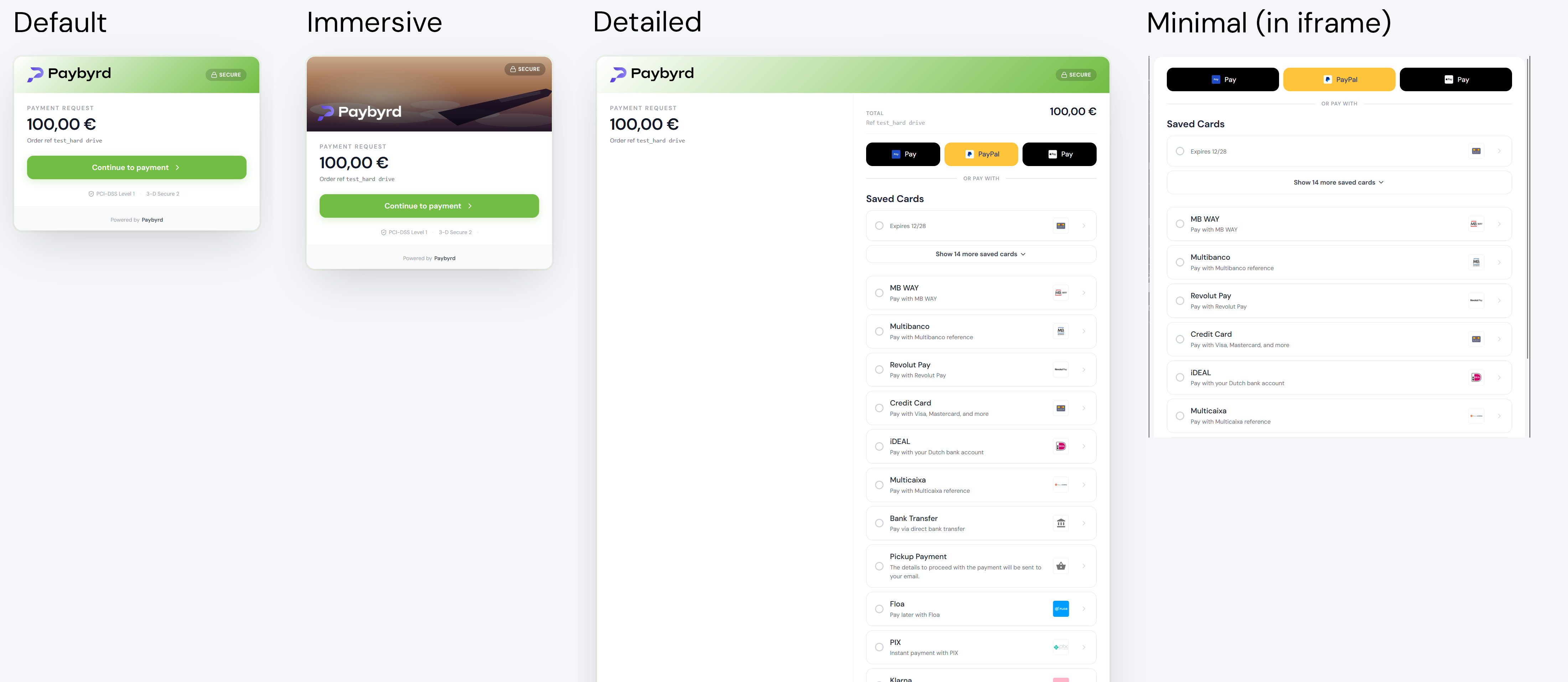
- Paybyrd Checkout now supports 4 different display variants:
default,immersive,detailed, andminimal:defaultshows all necessary details in a central view.immersiveis based ondefault, with an extra banner image at the top of the screen.detailedshows a clear overview of the payment details and the available payment methods all within one screen.minimalis recommended for using in iframes. It focuses on only displaying sections that the user can interact with. You can set the display variant by adding a pathname property to the checkout URL. For example:https://chk.paybyrd.com/detailed?checkoutKey=...
UX updates
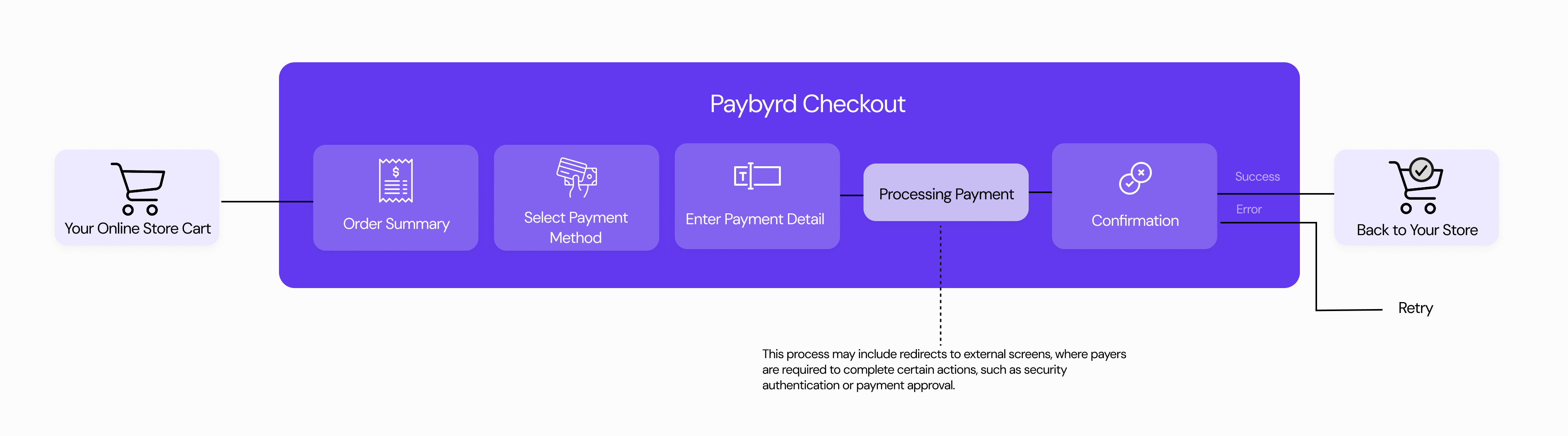
The new Paybyrd Checkout flow
- We have introduced an extra confirmation step in the payment process. This step gives end users a chance to confirm their selected payment methods before generating an order. The goal of this improvement is to eliminate user error by enabling end users to change their payment method selection.
- We have also added clear status messages and explanations so end users always know where they are within the payment process.
- Paybyrd now offers improved error messaging that show the cause of payment errors for specific payment methods.
- Checkout can now display extended information like flight or shopping cart details right within the landing page of the payment gateway.
New and updated parameters
The new Checkout version now supports these parameters to customize the payment gateway:
Set display variant
Use this property in the pathname of the checkout URL to set any of the 4 display variants.
| Property | Type | Required | Example value | Description |
|---|---|---|---|---|
https://chk.paybyrd.com/<variant>?checkoutKey=... | pathname | No | https://chk.paybyrd.com/detailed?checkoutKey=... | Set any of the 3 display variants. The accepted values are When not set, falls back to |
Customize UX
Use these parameters to further customize the checkout experience. Learn how to set these parameters in the Checkout guide.
| Parameter | Type | Required | Example value | Description |
|---|---|---|---|---|
logoUrl | string / uri | No | https://domain.com/files/logo.png | A URL that points to your logo. Accepted file mime types are We recommend keeping the file sizes minimized to avoid slowing down page loads. |
hideLogo | boolean | No | true or false | Define whether your logo is visible for the end user within the payment gateway. Defaults to |
showHeader | boolean | No | true or false | Show or hide a UI section with your logo at the top of the checkout UI. Defaults to |
showOrderSummary | boolean | No | true or false | Define whether you want to display a summary of the order for the end user. This screen is displayed at the beginning of the payment process. Requires the new version of Checkout. Defaults to |
fullscreenModals | boolean | No | true or false | Enables displaying external modals in full screen. Examples include 3DSecure checks or any other MFA methods that open up in an external modal. Defaults to |
skipMBWayWaitingForPaymentScreen | boolean | No | true or false | Show or skip the polling screen for phone payments, specifically for MBWay. When set to Defaults to |

See the documentation for a complete list of parameters.
Migrating to the new version
If you need support in migrating to the new version, reach out to the Paybyrd operations team.
1. Define the version during order creation
To create a Checkout instance that uses the new version, add the checkoutVersion body parameter to the orderOptions object in your Create order request, and set the value to 2:
"orderOptions": {
	... // other order options
	"checkoutVersion": 2
},
This enables the Paybyrd API to return a checkoutUrl that points to the new version, using chk.paybyrd.com as the host URL.
You can then use the resulting checkout URL in your implementation when displaying the payment gateway.
2. Update URL references in your implementation
- When using an iframe to display the Paybyrd payment gateway, make sure you update the value of the
ENV_URLconstant to use the new host URL:chk.paybyrd.com - When using a standalone link to direct the user to the payment gateway, make sure that you present a checkout URL that uses the new host URL:
chk.paybyrd.com
Other methods, such as Pay by Link and PoS payments also use the new URL.
To ensure that transition to the new version is seamless, Paybyrd continues to support implementations of the previous version for an indefinite period.
If you do not want to update yet, set the
checkoutVersionbody parameter to1in theorderOptionsobject when you Create an order. This forces the Paybyrd API to provide a legacy checkout URL in the response, enabling your implementation to use the previous version of Paybyrd Checkout:"orderOptions": { ... // other order options "checkoutVersion": 1 }Note that you will not be able to use any new features this way.