
Adobe Commerce (Magento)
Adobe Commerce—formerly known as Magento—is an open-source e-commerce platform that provides tools to build and manage online stores. It offers extensive customization and provides marketing features for both B2B and B2C user experiences.
Paybyrd utilizes the Adobe Commerce extension ecosystem to seamlessly embed the secure Paybyrd payment gateway into your payment and checkout process.
How to install
Requirements
Before installing Paybyrd’s payment gateway extension, make sure you meet these requirements:
- Adobe Commerce (Magento) is already installed and configured with a production or staging environment.
- You have a Paybyrd account with Test and Live API keys.
- Your store has a public domain available. Order status updates in Magento work through async webhook calls, which require a publicly exposed URL.
The Paybyrd payment gateway extension supports Magento
2.3.xand the latest2.4.xversions. Paybyrd actively optimizes this extension for the latest updates.
Downloading the extension
Get in touch with our support team to get direct access to the extension.
Installing the extension
Visit the Adobe Commerce documentation on how to install the extension.
You will need the extension’s name and version to enable it in your store:
composer require paybyrd/paymentgateway:1.1.1Uninstalling the extension
Visit the Adobe Commerce documentation for details in case you need to uninstall the Paybyrd extension.
How to configure
To configure the Paybyrd payment gateway extension for Magento:
- Open the Adobe Commerce (Magento) console
- Navigate to Stores → Configuration
- Open the Sales dropdown to select Payment Methods
- Select the Paybyrd Payment Method to see all configuration options
You can configure these aspects:
- Title is the displayed name of the payment method. By default, the value is set by Paybyrd.
- Post Payment Redirect Url is the web address where the payment gateway redirects the user after a payment is completed. By default, the value is set to show the order payment confirmation page by Paybyrd.
- Instructions is a brief description of the payment method.
- API Key and Test API Key are the API keys required to make transactions. The Test API Key identifies you in Paybyrd’s sandbox and enables testing. The API Key enables production transactions.
- Webhook ID and Webhook Key are automatically generated after saving your API keys. Magento uses these to receive async updates when Paybyrd processes a transaction.
- Post Checkout Redirect defines whether you want to redirect the user after checkout to complete a payment. Paybyrd recommends setting the redirect to Yes for a secure and smooth payment experience.
- When set to Yes, the gateway redirects the user to a payment page hosted by Paybyrd.
- When set to No, the gateway renders the payment page in an iframe in your store's website.
- Test Mode enables the use of Paybyrd’s test environment. When enabled, all payments use your Test API Key.
- Color settings enable you to set up the Paybyrd extension to fit your store’s branding through configuring background and font colors.
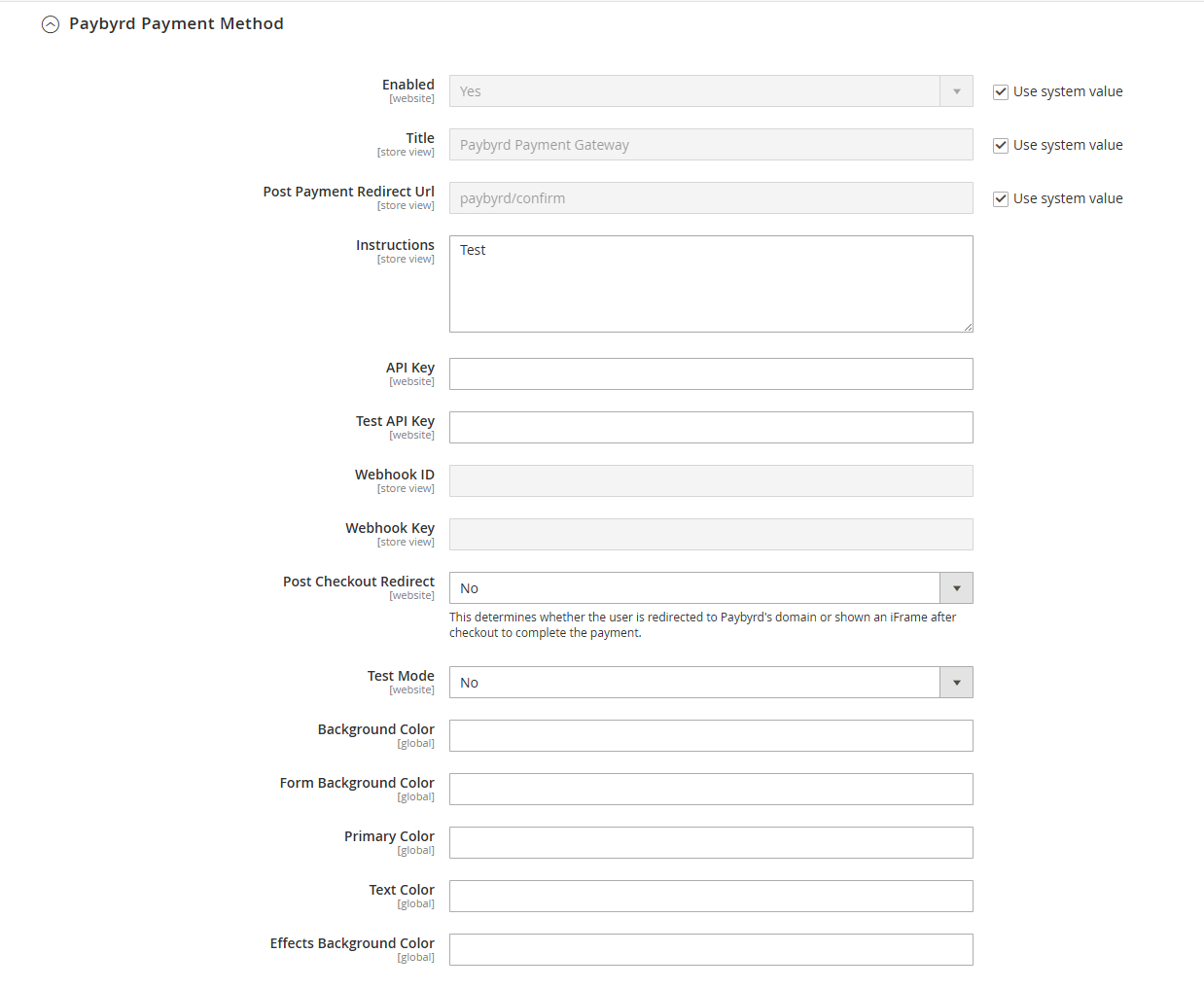
Configuration options for Paybyrd's Magento extension
Understand the payment flow
When using Paybyrd’s payment gateway extension, the end user goes through this payment flow:
- User selects the Paybyrd payment method during checkout.
- Paybyrd creates an order through the extension, using the API keys added during configuration.
- Magento loads the Paybyrd payment gateway for the user.
- User selects a payment method, fills all required fields, and submits the payment request
- Paybyrd processes the payment request using the selected payment method, for example card. In this case, a payment request is made with the card token, card holder name, expiration date, and any other custom or required field.
- This payment request generates a transaction for the order.
- Once this transaction is fulfilled, Paybyrd triggers asynchronous webhooks to the merchant’s domain.
Order synchronization depends on implementing webhooks correctly.
Make sure that your store has a publicly exposed URL to properly receive the webhook notifications from Paybyrd.
Refunds
When using the Adobe Commerce (Magento) extension, you can initiate refunds directly from your Paybyrd dashboard.
- Navigate to Payments → Transactions and find the order you need to refund
- Open the context menu next to the transaction and select Refund
- Create a full or partial refund. The order status in your Adobe Commerce (Magento) store is updated via webhooks.
You can also trigger refunds using the Paybyrd API. Check out the Refund guide and the API reference for more details.
Going live
Follow these steps when going live with your store:
- Open the Adobe Commerce console and navigate to Stores → Configuration
- Open the Sales dropdown to select Payment Methods
- Select the Paybyrd Payment Method to see all configuration options
- Confirm your Live API Key to enable production API calls
- Disable the Enable Test Mode checkbox
- Save changes and confirm that a Webhook ID is correctly generated
- Execute a real payment to verify production readiness