

Logging in
Your merchant credentials and account details are provided by Paybyrd via email during onboarding. You will need these to access the merchant dashboard. Sign up first if you do not have an account yet. After logging in, you can retrieve your API key, needed to authenticate all API requests.You can invite team members to your merchant group or store. Visit the Team Users page in the Dashboard to set each user’s access level and send an email invitation.
- Search and view transactions
- Issue refunds
- Manage store settings and team members
- Download settlement reports
- Configure refund passwords and account settings
Start building
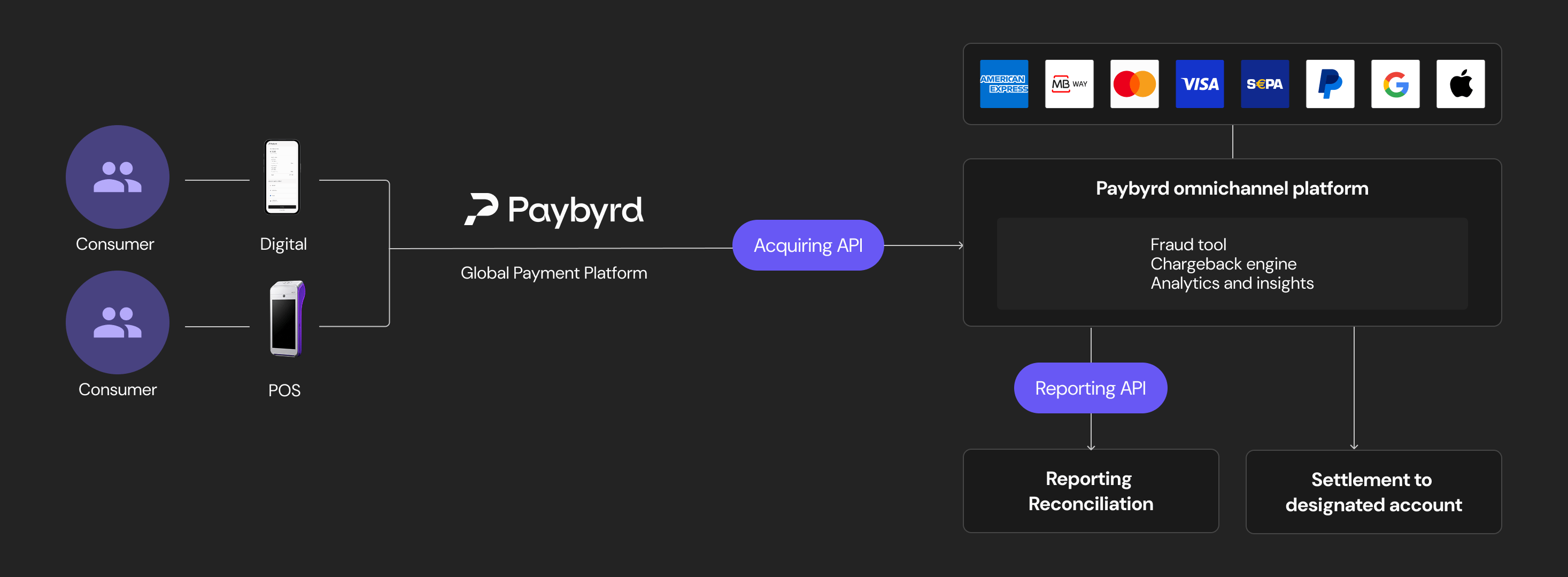
You can now start integrating Paybyrd. Your integration path depends on your setup: configure a POS terminal, build a custom online checkout, or install a plugin for your e-commerce platform. This section covers the available options depending on your use case.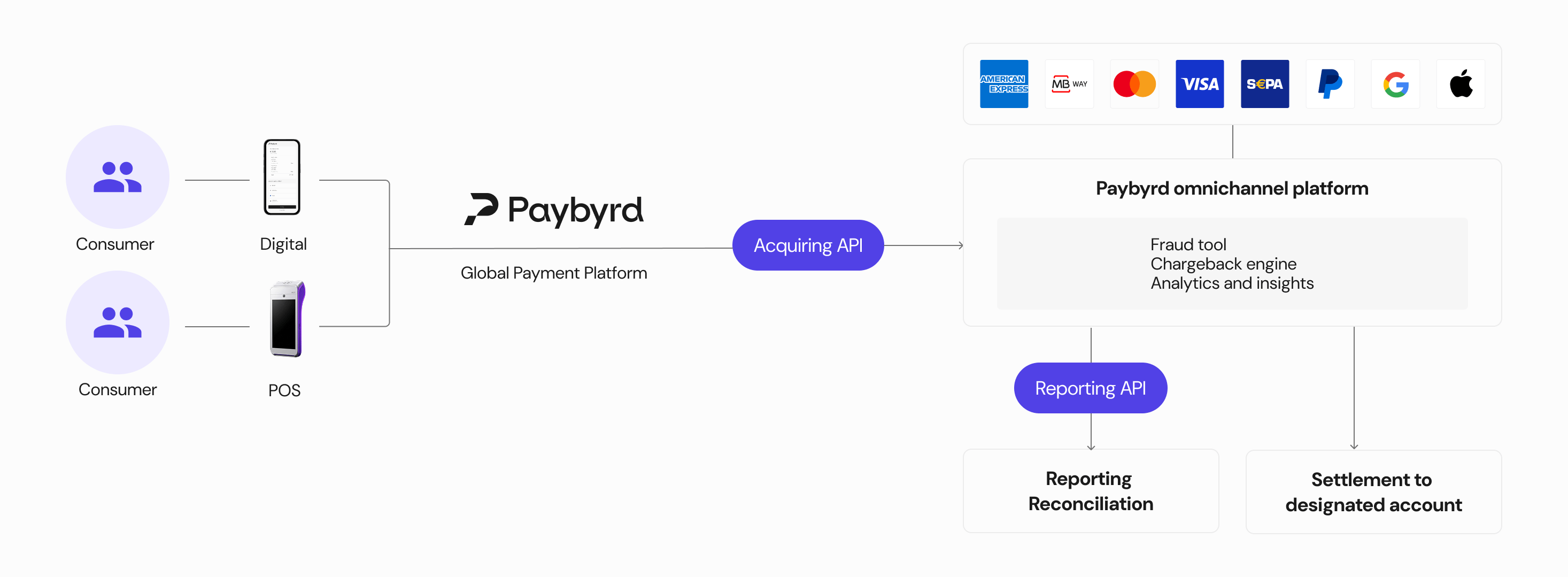
POS terminal
If you have been set up with a Paybyrd POS device, it will arrive pre-charged and ready to use. Follow the setup instructions included in the box. Once connected via Wi-Fi or 4G, the terminal is ready to accept payments. For full usage instructions, see the POS Terminal Starter Manual.E-commerce API
If you are building a custom online checkout, Paybyrd provides REST APIs and front-end components for secure payment collection. See the API Reference and the Paybyrd Checkout documentation to get started.No-code plugins
If you are using Adobe Commerce (Magento), WooCommerce, or nopCommerce, Paybyrd offers ready-made plugins that add payment support without custom integration. See the available plugin documentation:Need help?
- Chat: Available from the merchant dashboard (bottom right). On the POS terminal, tap the chat icon in the bottom-left corner.
- Email: help@paybyrd.com
- Phone: +351 910 042 417